Think of your PowerPoint as a suitcase full of ideas – perfectly packed, but bound for a different destination. Converting it to Google Slides is the gentle transfer at the terminal: the contents stay the same, but the journey changes. Whether you’re moving a single deck for a quick edit or migrating an archive for shared, cloud-based collaboration, the conversion process is a small but crucial step that opens up new ways to work together.
This article walks you through that step with clear, practical guidance. You’ll learn the simplest methods to import a .pptx file into Google Slides, how to preserve layout and fonts, common issues to watch for (like embedded media and transitions), and a few tips to smooth out post-conversion tweaks. There’s also a brief look at batch and programmatic options for larger workloads.
No matter your starting point – a one-off presentation or a library of slides – the goal is the same: keep your message intact while taking advantage of Google Slides’ collaborative, cloud-first environment. Let’s move that suitcase onto the right conveyor belt.
Preparing Your PowerPoint for a Seamless Transition
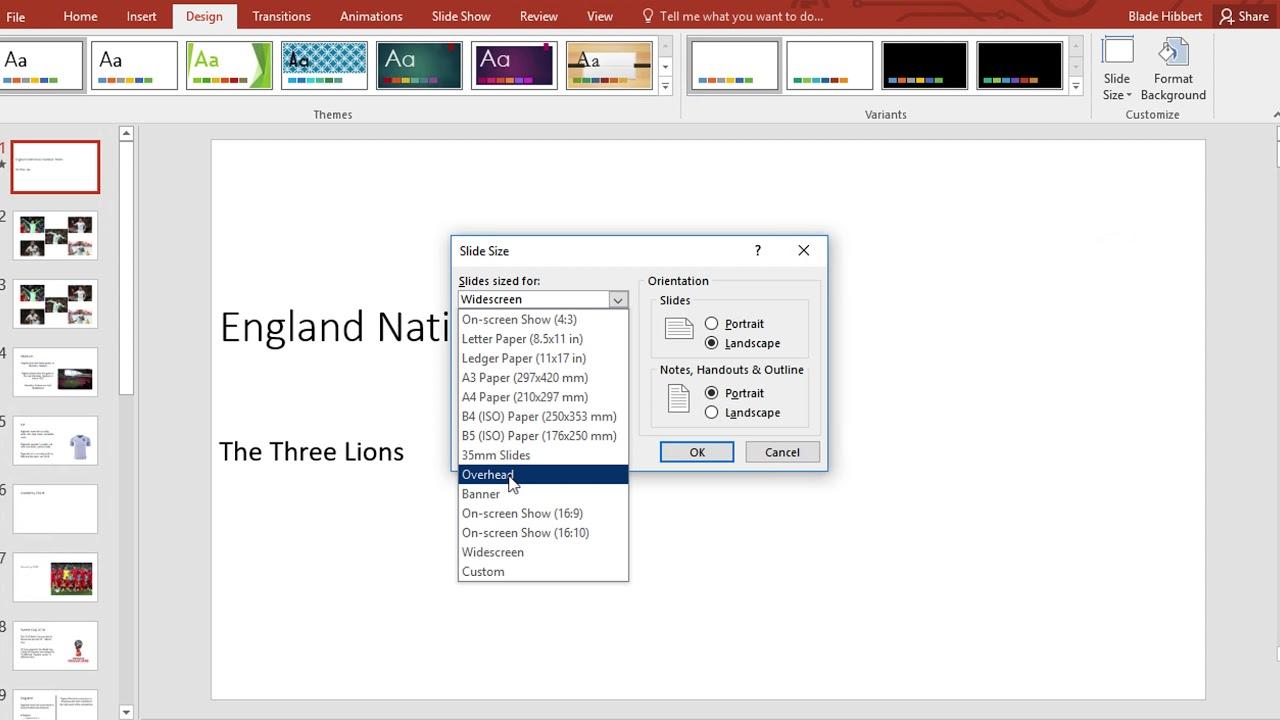
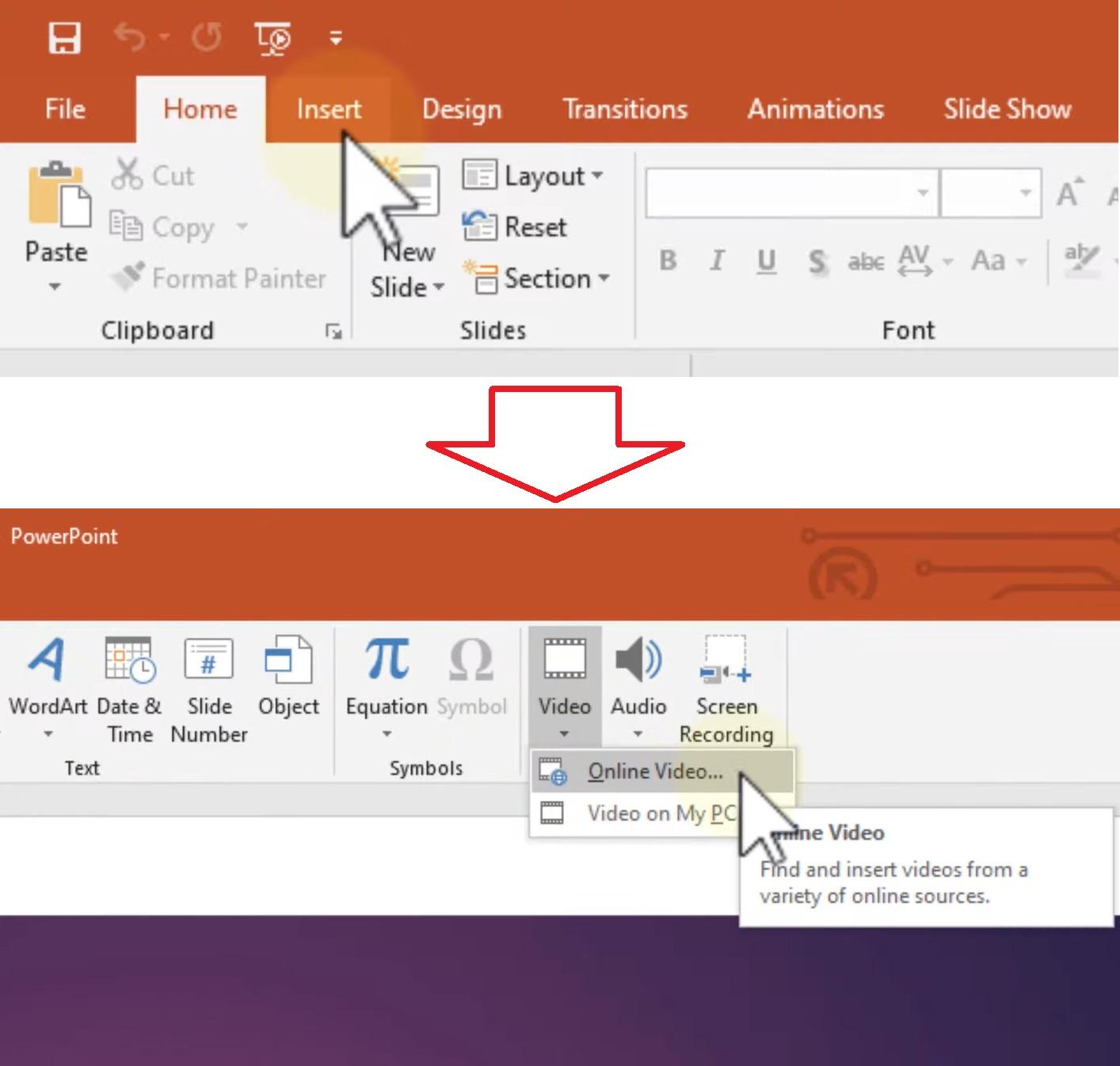
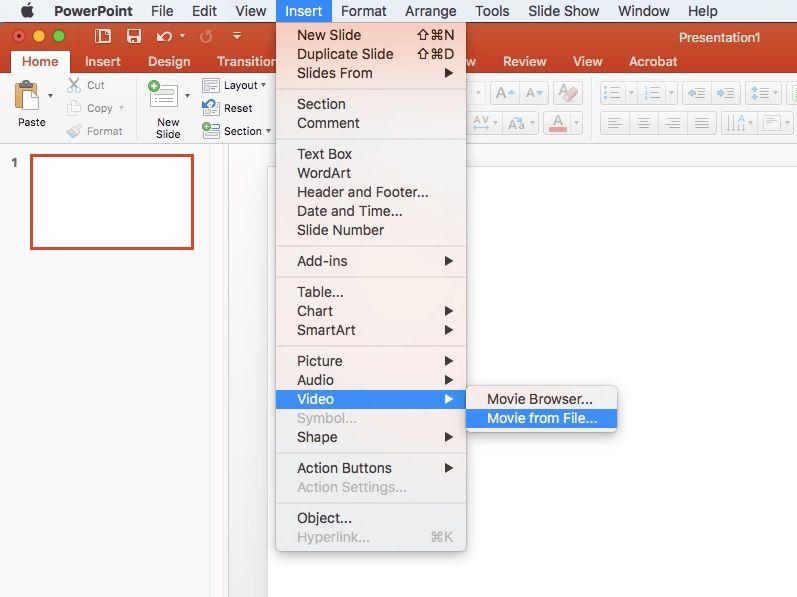
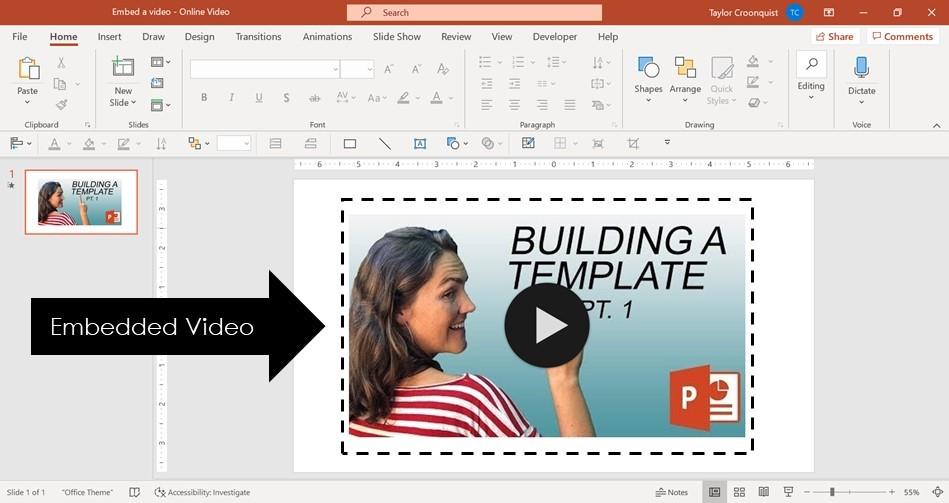
Trim and tidy before you migrate: remove unused master slides, consolidate fonts to web-safe families, and convert overly complex SmartArt or grouped objects into simpler shapes. Pay special attention to slide dimensions and orientation-Google Slides defaults can shift layout-so set a consistent size on every slide. Compress large images and replace obscure codecs in embedded media; if a video or audio file is critical, plan to upload it separately to Google Drive and link it after the import. These small housekeeping steps reduce surprises and speed up the conversion.
Label and document the transition details for collaborators: add clear slide notes about animation intent, mark slides that rely on third-party add-ons, and remove hidden or duplicate slides that will clutter the new deck. Test a short sample conversion to catch font fallbacks or broken transitions, then iterate. Keep a quick backup copy of the original .pptx and a simple changelog so edits made during the move can be reviewed or reverted easily.
- Embed or replace fonts – avoid custom fonts when possible
- Simplify animations – prefer fades and appear effects
- Optimize media – upload large videos separately
- Clean masters – keep only used layouts
| Common Issue | Quick Fix |
|---|---|
| Missing fonts | Use system fonts or convert text to shapes |
| Unsupported animation | Replace with simple transitions or static slides |
| Large file size | Compress images and remove hidden slide assets |
Selecting the Best Import Method Based on File Size and Content Type
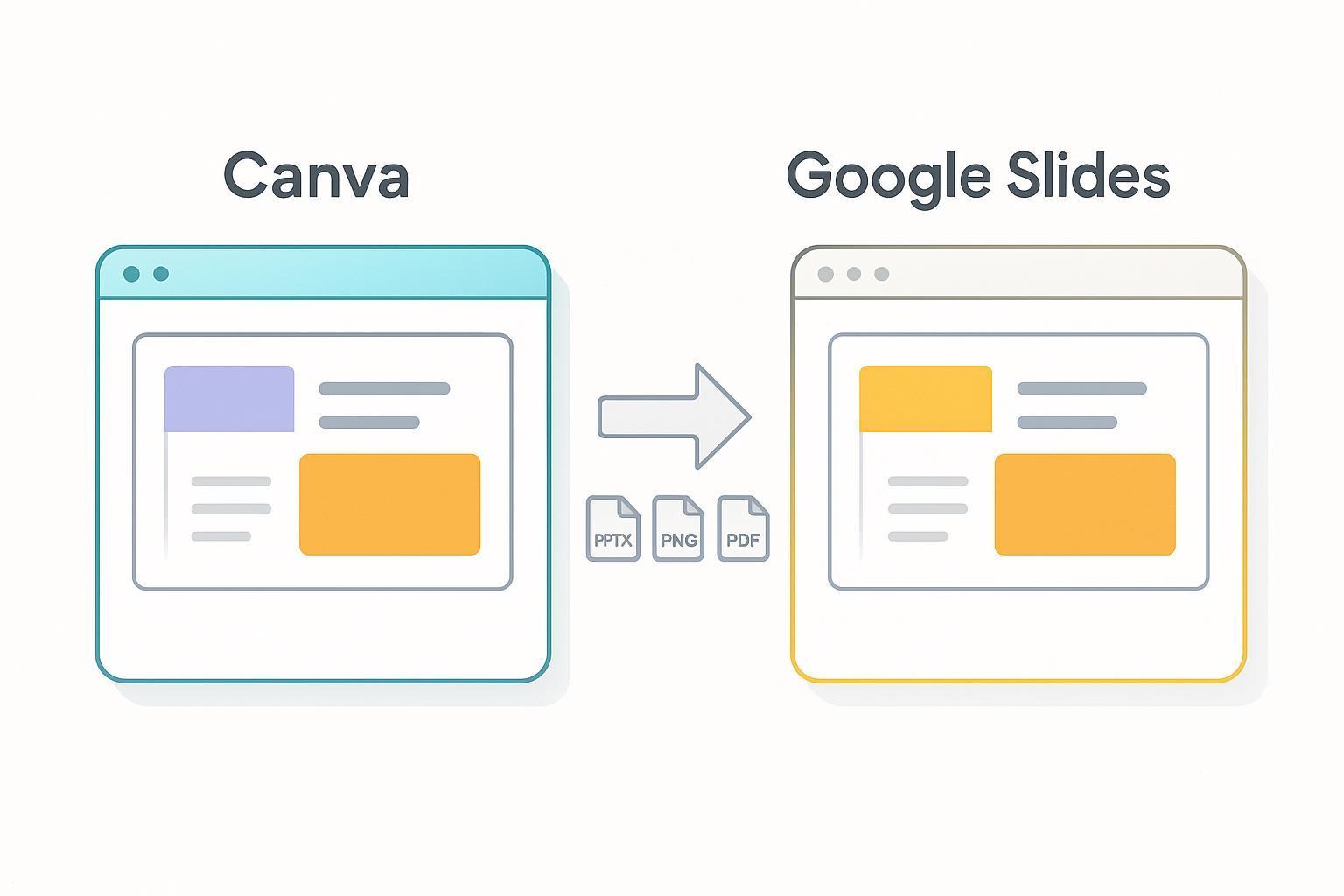
Think of conversion as a choice between speed and fidelity: for small files (typically under ~50MB) that are mostly text and simple graphics, the quickest route is to upload the .pptx/.ppt to Google Drive and choose Open with → Google Slides – this usually preserves layout and editable text. If your deck contains embedded videos, advanced animations, or custom fonts, expect imperfect results; export heavy media separately (MP4 for videos) and reinsert them, or consider splitting very large files into smaller chunks before importing to avoid timeouts or corrupted slides.
Use this quick checklist to pick the right approach:
- Direct Upload – Best for small, text-heavy presentations.
- Import Slides – Ideal when merging a few slides from an external deck into an existing Google Slides file.
- Export Media First – For presentations with videos or sound, upload media to Drive separately and relink.
- Convert to PDF – Use when fidelity matters more than editability (static preview or handouts).
- Third-Party Tools – Reserve for very complex files that keep failing to convert natively.
Treat the process like packing: fold the text carefully, carry large media as hand luggage, and leave exotic animations for a follow-up edit inside Google Slides.
Troubleshooting Formatting, Fonts and Embedded Media for Accurate Results
When slides migrate from PowerPoint to Google Slides, subtle spacing, alignment and font substitutions can make a confident presentation feel off-kilter. Tackle visual drift by locking down one version of your file first: check the Slide Master, embed any non-standard fonts in PowerPoint when possible, and convert complex shapes to images if fidelity matters more than editability. Also preview in Chrome or a current Chromium-based browser-Google Slides renders best there-and keep an eye on animations and transitions, since some effects will be flattened or approximated during import.
Start troubleshooting methodically with a short checklist, and use these quick wins to restore accuracy:
- Replace missing fonts with close Google Fonts before import to avoid automatic substitutions.
- Export heavy media (video/audio) to supported formats like MP4 and reinsert via Google Drive if embedded media fails.
- Flatten layered objects (merge into one image) when overlapping layers shift on import.
- Use the table below for fast fixes and re-check the Slide Master after any bulk changes.
| Issue | Quick Fix |
|---|---|
| Font swaps | Switch to a Google Font or outline text as image |
| Broken video | Upload MP4 to Drive and link in Slides |
| Shifted layout | Fix in Slide Master and reapply layout |
Post Conversion Workflow Tips for Collaboration, Version Control and Offline Access
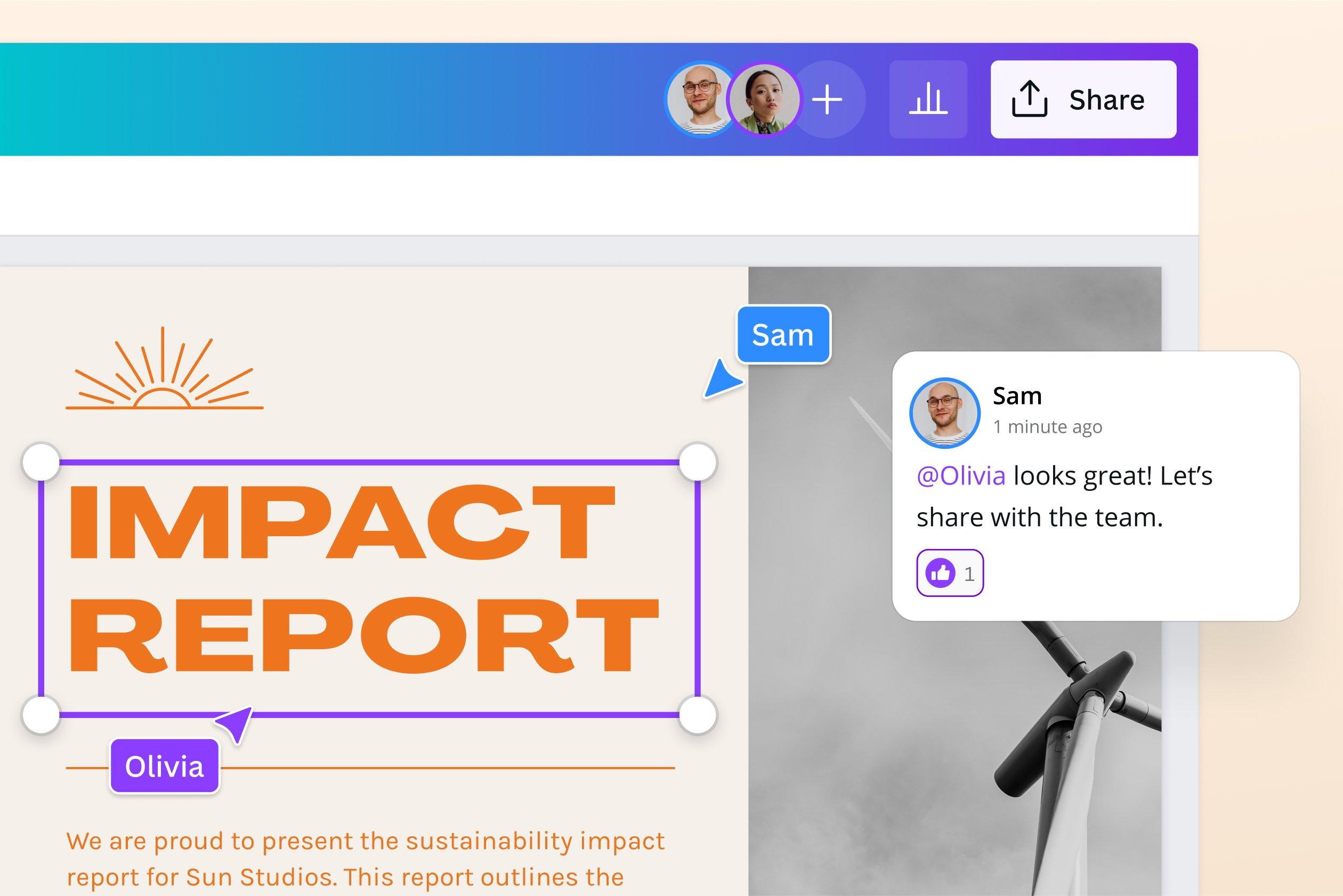
After you convert, make collaboration effortless by defining a single source of truth and lightweight rules everyone follows. Keep a master copy in Google Drive and use descriptive file names (date + brief note) so version history becomes a feature, not a mess. Encourage teammates to use comments and @mentions for slide-level feedback and to assign ownership for specific sections. Quick checklist for smooth teamwork:
- Master copy: Read-only for most, editable by maintainers.
- Version tags: Name snapshots (v1, v2-final) in Drive’s version history.
- Slide owners: Small responsibilities reduce merge conflicts.
- Comment-driven edits: Resolve threads before major rework.
For offline access and reliable rollbacks, combine Google’s built-in tools with simple exports so your deck travels with you. Enable Offline mode in Google Drive, sync via Google Drive for Desktop, and periodically export a stable backup as PPTX or PDF for distribution or archival. Use the table below to pick the right backup at a glance:
| Backup Type | When to Use |
|---|---|
| Cloud version | Daily collaboration and edits |
| Local PPTX | Presentations without internet |
| PDF snapshot | Final handouts and archiving |
Wrapping Up
Converting a deck is less about changing the story than changing the stage. Upload to Drive, open with Slides, convert, and then give your presentation a quick walk-through: check fonts, transitions, embedded media, and slide masters. Keep a copy of the original .pptx as a safety net, and adjust anything that doesn’t translate cleanly.
From here, sharing and collaboration are straightforward-links, permissions, comments, and version history keep everyone aligned without juggling files. Whether you’re presenting from a browser, working across time zones, or standardizing your library, you now have a reliable path between formats.
With the conversion done, your slides are ready for their next venue. Close the tab on file types, and open the one for rehearsal.